Introduction
The transition from traditional cable to Internet Protocol Television (IPTV) represents one of the most significant disruptions in media history. By 2025, the global IPTV market is projected to exceed $130 billion, a growth driven largely by high-speed broadband and accessible streaming devices like the Amazon Fire TV Stick. Yet, for users searching for Glo IPTV on Amazon Firestick, the landscape is fraught with confusion. The term “Glo” does not refer to a singular entity but rather three divergent service categories that share a name but operate with fundamentally different infrastructures.
Failure to distinguish between these services can lead to configuration errors, payment fraud, and significant legal exposure. This guide provides a rigorous technical analysis to help you navigate this complex ecosystem. We will dissect the “Glo” identity, detail precise installation protocols, and reveal how to configure the Best IPTV for Amazon Firestick for a buffer-free, broadcast-quality experience.
1. Decoding the “Glo” Ecosystem
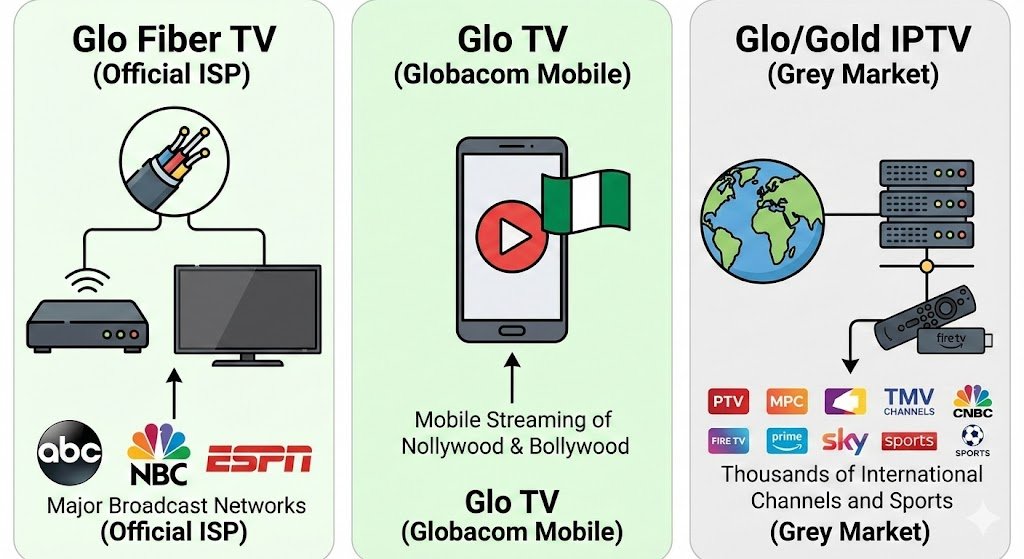
Before attempting any installation, it is critical to identify exactly which “Glo” service you are dealing with. Market data indicates that “Glo IPTV” refers to three distinct entities, and mixing them up is the primary cause of user frustration.
The Three Faces of Glo
- Glo Fiber TV (The Licensed ISP Solution): Glo Fiber is a legitimate, facilities-based Internet Service Provider (ISP) operating primarily in the Mid-Atlantic United States, including Virginia, West Virginia, Maryland, Delaware, Pennsylvania, and Ohio. Their “Glo Fiber TV” service is a fully managed IPTV solution delivered over a dedicated fiber-optic network. Because the video traffic travels within the ISP’s own “walled garden,” they can apply Quality of Service (QoS) prioritization to eliminate buffering entirely. This service is fully licensed, carrying retransmission agreements with major networks like ABC, NBC, CBS, and ESPN.
- Glo TV (Globacom Limited): Originating from Nigeria, Globacom is a massive telecommunications operator. Their “Glo TV” is a mobile-first streaming app designed specifically for subscribers within their cellular network. While it offers premium content like Nollywood and Bollywood movies, its technical architecture is optimized for Android and iOS mobile devices, not the “lean-back” experience of a television. Users who attempt to sideload this specific mobile APK onto a Firestick often encounter severe navigation issues because the app lacks remote-control optimization.
- “Glo” / “Gold” / “Global” IPTV (The Grey Market): This unregulated sector is the primary focus of most “sideloading” guides and user queries. These third-party services, often marketed by resellers under names like “Glo TV,” “Global IPTV,” or “Gold IPTV,” operate using offshore servers in jurisdictions with lax copyright enforcement. They aggregate thousands of channels without direct licensing and use middleware connections (like Xtream Codes) to deliver content. This segment represents the technically complex “grey market” that necessitates specific configuration steps, such as enabling developer options and using VPNs.
Comparison of Services
To clarify the major technical and operational differences, the following table contrasts the three distinct “Glo” services. This comparison highlights why configuration methods differ so drastically.
| Feature / Metric | Glo Fiber TV (Official ISP) | Glo TV (Globacom Mobile) | Glo/Gold/Global (Grey Market) |
| Primary Region | USA (Mid-Atlantic) | Nigeria / West Africa | Global (Reseller based) |
| Content Source | Direct Carriage Agreements | Licensed Partners | Retransmitted/Aggregated |
| Delivery Method | Managed IP Multicast | OTT Unicast (Mobile) | Unmanaged OTT Unicast |
| App Availability | Official App Stores | Google Play / Apple App Store | Sideload Required |
| Authentication | ISP Account Binding | Mobile Number / OTP | Xtream Codes / M3U |
| Cost Basis | Premium ($50-$165/mo) | Subscription/Data Bundled | Ultra-Low ($10-$15/mo) |
| Legal Status | Fully Compliant | Fully Compliant | High Risk / Non-Compliant |
| Support | 24/7 Phone/Chat | Telecom Support | Anonymous Email/Ticket |
Why Firestick?
The Amazon Firestick has become the de facto hardware standard for IPTV for Amazon firestick deployment due to its low cost and the flexibility of its Android-based operating system, Fire OS. Unlike closed ecosystems like Roku or Apple TV, Fire OS allows for “sideloading”—the installation of applications not verified by the official app store. This capability is essential for accessing grey market Glo IPTV on Amazon Firestick services, which are systematically excluded from official marketplaces due to copyright compliance policies.
2. Prerequisites for Glo IPTV on Amazon Firestick
To successfully run GloTV or any high-performance IPTV for Amazon firestick service, you need a solid technical foundation.
Hardware Requirements
- Device Generation: While older Firesticks (Gen 1 & 2) can technically run IPTV apps, their processors are often insufficient for the decoding required by modern HD streams, leading to sluggish menus. A Fire TV Stick 4K, 4K Max, or Fire TV Cube is strongly recommended for their superior RAM and GPU capabilities.
- Storage: IPTV players must cache data to function smoothly. Ensure your device has at least 1GB of free space (check via Settings > My Fire TV > About > Storage) to prevent performance bottlenecks.
Internet Speed
Streaming live TV requires consistent, robust bandwidth.
- HD Content: A minimum connection speed of 10 Mbps is required.
- 4K Content: For Ultra HD streams, you need a stable speed of at least 25 Mbps.
- Connection Type: Wi-Fi is susceptible to interference. Using an Ethernet Adapter for your Firestick to hardwire the connection is highly recommended to eliminate instability.
The VPN Necessity
For third-party GloTV users, a Virtual Private Network (VPN) is not optional; it is a critical component of the infrastructure. ISPs use Deep Packet Inspection (DPI) to analyze traffic patterns. Even if they cannot see what show you are watching, they can detect the steady UDP stream structure typical of IPTV and automatically throttle the connection during peak hours. A VPN wraps your data in an encrypted tunnel, preventing ISPs from applying specific throttling rules to your video stream. Furthermore, a VPN allows you to mask your location, which is essential for unlocking geo-restricted content like UK sports streams.
3. Step 1: Preparing Your Firestick (Developer Options)
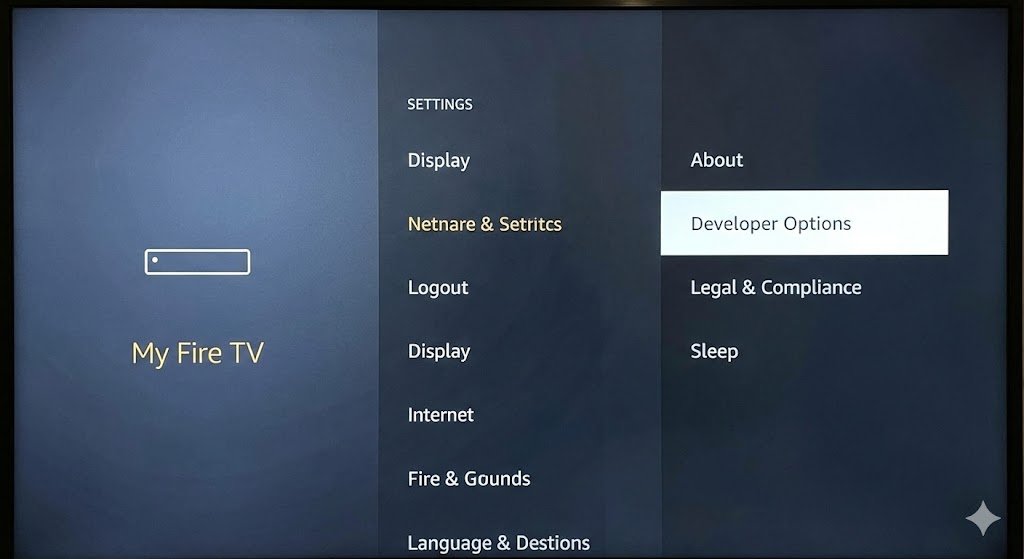
Amazon’s Fire OS locks down the installation of APKs (Android Package Kits) by default to protect the ecosystem. You must unlock the “hidden” Developer Options menu to install Glo IPTV on Amazon Firestick apps.
Unlocking the Gate
- Navigate to Settings: From the Home screen, scroll to the Gear icon on the far right.
- Select Device Info: Click on the tile labeled “My Fire TV” (or “Device & Software” on some models).
- The Unlock Action: Click on “About” and highlight the device name (e.g., “Fire TV Stick 4K Max”).
- Execute Trigger: Press the Select (center) button on your remote 7 times rapidly.
- Visual Feedback: A countdown notification will appear at the bottom of the screen: “You are X steps away from being a developer,” followed by “No need, you are already a developer”.
Enabling Permissions
- Locate the Menu: Press the Back button once. A new menu item titled “Developer Options” will now be visible below “About”.
- ADB Debugging: Enter the menu and turn ADB Debugging ON. This allows external connections to manage the device.
- Install Unknown Apps: Click this option. You will see a list of apps. You must specifically toggle the switch for the “Downloader” app to ON (Note: You may need to return to this step after installing Downloader in the next section).
4. Step 2: Installation Guide (Sideloading)
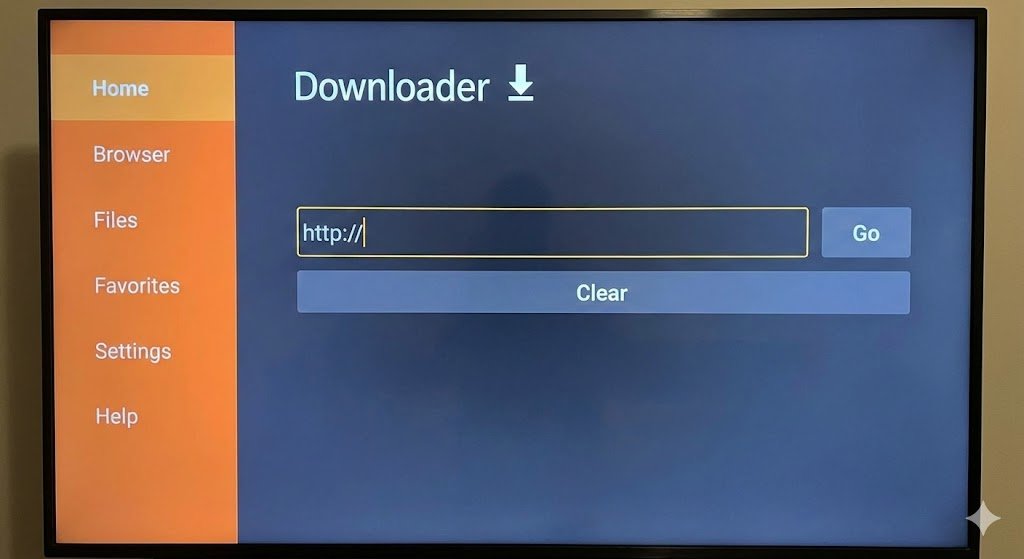
Since grey market GloTV apps and middleware like “IPTV Smarters Pro” are not available in the Amazon Appstore, we must use a “sideloading” utility called Downloader.
Getting the Downloader App
- Return to the Firestick Home Screen and select the Find (magnifying glass) icon.
- Type “Downloader” and select the app with the orange icon labeled “Downloader” by AFTVnews.
- Click “Get” or “Download” to install the app.
- Crucial Permission: Upon first launch, the app will ask for permission to access photos, media, and files. You MUST click Allow. If you Deny, the app cannot save the APK files needed for installation.
The Sideloading Process
Typing long URLs with a TV remote is prone to error, so the Downloader app supports numeric “Short Codes”.
- Open Downloader and navigate to the Home tab on the left sidebar.
- Enter the Code: Use one of the verified codes for 2024/2025:
- IPTV Smarters Pro (Lite/Premium): Code 28907 or 78522.
- TiviMate Companion/Player: Code 19108 or 27248.
- Direct URL Method: If you prefer, type firesticktricks.com/smarter.
- Download: Click Go. The app will redirect to the file server, and a progress bar will show the APK downloading.
- Install: When the download completes, a system prompt will appear asking if you want to install the application. Click Install.
- Completion: Once installed, a notification will appear: “App Installed.” Click DONE (Do not click Open yet).
- Cleanup (Best Practice): You will be returned to the Downloader interface. Click Delete to remove the APK file, then click Delete again to confirm. Keeping installation files wastes valuable storage space on the Firestick.
5. Step 3: Configuration and Setup
IPTV Smarters Pro is “middleware”—software that acts as a bridge between the Glo IPTV server and your TV screen. It does not contain content itself; it must be “fed” with credentials.
Choosing the Right Player
While some resellers provide their own branded app, using a generic middleware app like IPTV Smarters Pro or TiviMate is often better because these apps are more stable and feature-rich.
Logging In
Launch the app and accept the license agreement. You will be presented with login options. It is critical to choose the right one for stability.
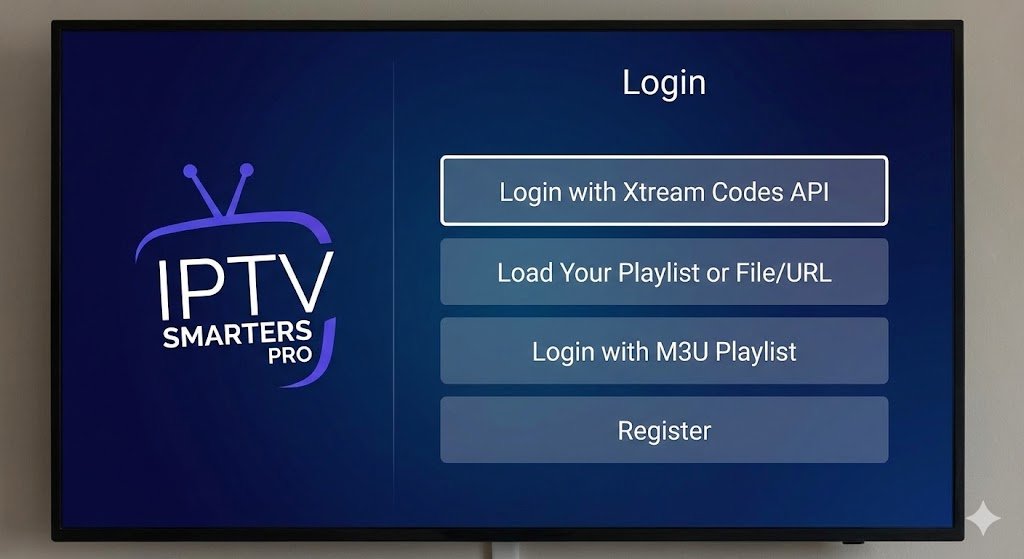
Method A: Login with Xtream Codes API (Recommended):
This is the superior method because it separates the username, password, and server URL, allowing the app to manage EPG (Guide) data and Catch-up features better.
To get you GloTV subscription, Click here.
- Any Name: Enter “Glo IPTV” (or any name you prefer).
- Username: Enter the username from your confirmation email (case sensitive).
- Password: Enter the password (case sensitive).
- URL: Enter the server URL. Crucial: This must include the http:// prefix and the port number (e.g., http://line.glotv-server.com:8080).
- Click Add User.
Method B: Load Your Playlist (Legacy):
Use this only if your provider did not give you a server URL but gave you a very long link ending in .m3u or .m3u8. Select “Load Your Playlist or File/URL,” enter a name, and paste the long string. Tip: Use the Amazon Fire TV Remote App on your smartphone to copy/paste this URL to avoid typos.
EPG Setup
Once logged in, you will see the dashboard. To populate the TV guide, click “Install EPG”. If the guide is empty, go to Settings > EPG > Refresh EPG.
6. Channels, VOD, and Features
The allure of Glo IPTV on Amazon Firestick lies in its massive content library.
What to Expect
- Glo Fiber TV (Official): Offers a lineup mirroring traditional cable, including local affiliates (ABC, CBS, NBC, FOX, PBS), licensed sports (ESPN, Fox Sports 1), and a Cloud DVR feature allowing 25 to 250 hours of recording.
- Grey Market “Glo” Services: These services often boast channel counts between 5,000 and 20,000. They excel in international variety, offering packages for the UK (Sky, BBC), India (Star, Zee, Sony), Arabic regions, and Latino markets.
- Premium Sports: A primary driver for grey market adoption is access to pay-per-view (PPV) events without fees, including NFL Sunday Ticket, Premier League games (including those blocked in the UK), and UFC/Boxing PPVs.
VOD (Video On Demand)
Grey market services effectively function as aggregators of content from Netflix, Disney+, Hulu, and Amazon Prime. Libraries often exceed 40,000 titles, including “In-Cinema” releases and complete box sets of virtually every major TV series.
7. Optimizing Performance (No Buffering)
Streaming performance depends on configuration. Here is how to ensure your IPTV for Amazon firestick runs smoothly.
Player Settings
- Hardware Decoder: In Smarters Pro settings, go to “Player Selection” and change the decoder to Hardware Decoder. This utilizes the Firestick’s native processing power for smoother 4K playback.
- Buffer Size: In settings, look for “Stream Format” and change it from MPEG-TS to HLS (adaptive streaming). Alternatively, set the “Buffer Size” to Large or 3. This increases the pre-loaded video delay, which helps prevent stoppages during minor network fluctuations.
External Players
If you encounter audio/video sync issues or black screens, it is often a codec issue.
- Install VLC Player via Downloader.
- In Smarters Pro settings, go to “External Player” and set VLC as the player for the specific category (e.g., Movies or Live TV) giving you trouble. VLC has much better codec support than the native player.
8. Troubleshooting Common Issues
Even the Best IPTV for Amazon Firestick setup can encounter errors.
- Login Failed: 90% of “Invalid Details” or “Authorization Failed” errors are due to typos. Users often confuse a capital “I” with a lowercase “l”, or an “O” with a “0”.
- DNS Block: If your login details are correct but you cannot connect, your ISP may be blocking the DNS resolution of the IPTV server.
- Fix: Go to Firestick Settings > Network. Forget your network and reconnect. When entering the password, click “Advanced.” Enter your IP/Gateway manually, but for DNS 1, enter 1.1.1.1 (Cloudflare) or 8.8.8.8 (Google) to bypass the ISP’s directory.
- IP Lock: If you tested the subscription link on your phone first, the server might have locked to your phone’s IP address. You must contact your reseller to request a “MAC/IP Reset”.
- Stream Error / Loop: If a specific channel loops or fails, try the “Backup” or “FHD” version of that channel. You can also clear the cache by going to Settings > Applications > Manage Installed Applications > IPTV Smarters > Clear Cache (Do NOT click Clear Data, or you will lose your login).
You can Contact us if you have are facing and problems with your log in credentials.
9. Legal Disclaimer & Safety Warning
It is imperative to understand the legal standing of these services. Glo Fiber TV and Glo TV (Mobile) are 100% legal and fully compliant services. However, the “Glo/Gold” reseller IPTV for Amazon firestick services operate in a legal grey area and are considered illegal in most jurisdictions if they provide paid content (like HBO or Sky Sports) without a license.
Authorities have shifted from civil litigation to criminal enforcement, targeting server farms and resellers. While mass arrests of end-users are rare, ISPs in the US and UK have the authority to terminate internet service for repeat copyright infringers. Users access unregulated GloTV services at their own risk.
Conclusion
In summary, setting up GloTV IPTV on Amazon Firestick can transform your entertainment setup, whether you are using a legitimate ISP package or exploring the versatility of third-party streaming. By following the steps outlined above—unlocking Developer Options, using the Downloader app, and optimizing your player settings—you can ensure a high-quality, buffer-free experience. Remember, the key to a stable setup lies not just in the installation, but in using the right configuration settings and securing your connection.