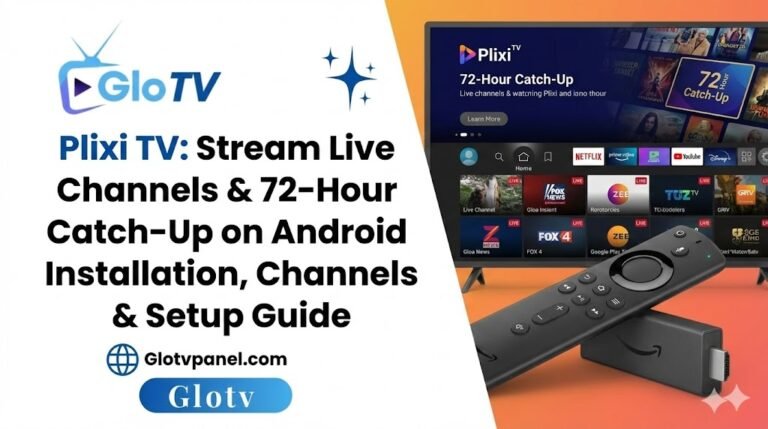
Traditional cable is losing its grip on the world as decentralized, internet-based delivery systems take over. This “OTT Revolution” has dismantled geographical monopolies and democratized how we watch media. Plixi TV is a powerful contender in this ecosystem, acting as a specialized IPTV client for the Android platform. It integrates global live television with advanced features like a 72-hour catch-up window, turning any Android device into a comprehensive media hub.
1. Understanding Plixi TV: More Than Just a Streaming App
Plixi TV is an Android-based application developed by “Media Solutions TV,” identified by the package name com.plixitv.app. It functions as a client-side interface that manages real-time data ingestion and rendering over IP networks.
Clearing the Namespace Confusion
A significant “namespace collision” exists between this streaming software and a social media service. It is vital to distinguish the Plixi TV app from the entity known as “Plixi” (plixi.com), which operates as an Instagram growth service. Market research shows that the social media service has received substantial negative feedback regarding fraud and bot followers. These grievances have no technical overlap with the IPTV streaming architecture of Plixi TV.
The Hybrid Value Proposition
This application bridges the gap between the rigidity of linear television and the flexibility of Video on Demand (VOD). While traditional TV requires you to be present at the moment of broadcast, and VOD services often lack live sports or news, Plixi TV addresses both needs. It targets a broad demographic of users, from those on mobile phones to users with Firesticks and Android TV boxes.
2. Core Features of the Plixi TV Experience
Global Live Channel Streaming
The core utility of the app is its ability to aggregate television channels from across the globe. It acts as a “virtual tuner,” allowing you to receive signals from multiple continents regardless of geographical boundaries.
Live Sports:
Access international coverage of football, basketball, and cricket.
News Networks:
Stay updated with breaking news from major global capitals.
Entertainment:
Browse a curated list of movies, series, and documentaries.
Regional Access:
The app often aggregates streams that may bypass traditional geo-blocking, though many users employ a VPN for privacy.
The 72-Hour Catch-Up Advantage
The standout feature is the 72-hour catch-up window, which fundamentally changes how you consume media. By maintaining a rolling buffer of broadcast content, the app allows you to access server-side recordings of live channels for up to three days after they aired.
EPG Navigation:
Use the Electronic Program Guide to scroll “back in time” by moving left on the program timeline.
Visual Indicators:
Programs available for catch-up are typically marked with a specific icon, such as a replay or play button.
Reliability:
Because archived content is stored on servers, it can be buffered more aggressively by the client, often resulting in less freezing than live streams.
High-Fidelity Performance
Plixi TV supports a range of resolutions to ensure a quality experience on any connection.
Resolution Support:
Viewers can switch between SD for low-bandwidth situations and 1080p for supported high-definition content.
Adaptive Bitrate:
The app employs algorithms that monitor connection health; if your internet slows down, it automatically switches to a lower bitrate to maintain continuous playback.
Audio Quality:
It supports standard codecs like AAC and MP3, while advanced users can utilize HDMI passthrough for 5.1 surround sound on compatible hardware.
3. Technical Deep Dive: How Plixi TV Works
The Plixi TV apk is built to interact deeply with the Android Media Framework. It likely implements Google’s ExoPlayer, an application-level media player that handles DASH and HLS adaptive streaming better than the standard Android Media Player.
Server-Side Architecture
The 72-hour catch-up feature relies on a complex backend engineering setup rather than local storage.
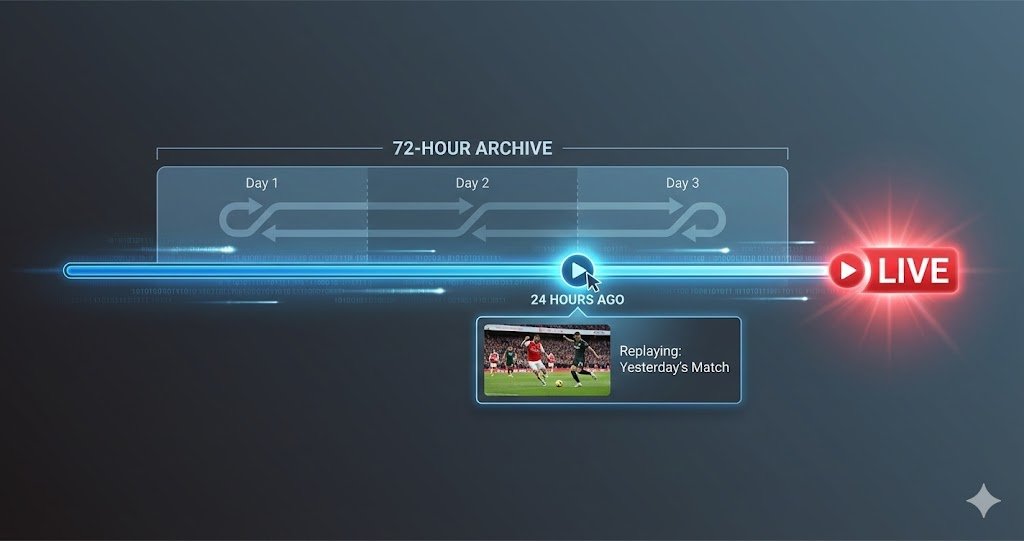
Circular Buffering:
The provider’s servers record the live stream continuously in a rolling 72-hour archive window.
Manifest Manipulation:
When you select a past show, the server generates a unique playlist file pointing to stored segments from that specific time slot.
VOD Controls:
This architecture allows you to use pause, rewind, and fast-forward controls on content that was originally live.
Hardware Optimization
To decode high-definition streams efficiently, the app leverages your device’s hardware decoders (SoC DSPs). This reduces CPU load and battery consumption, preventing the stuttering often seen with software-only decoding.
4. Comparison: Plixi TV vs. Industry Competitors
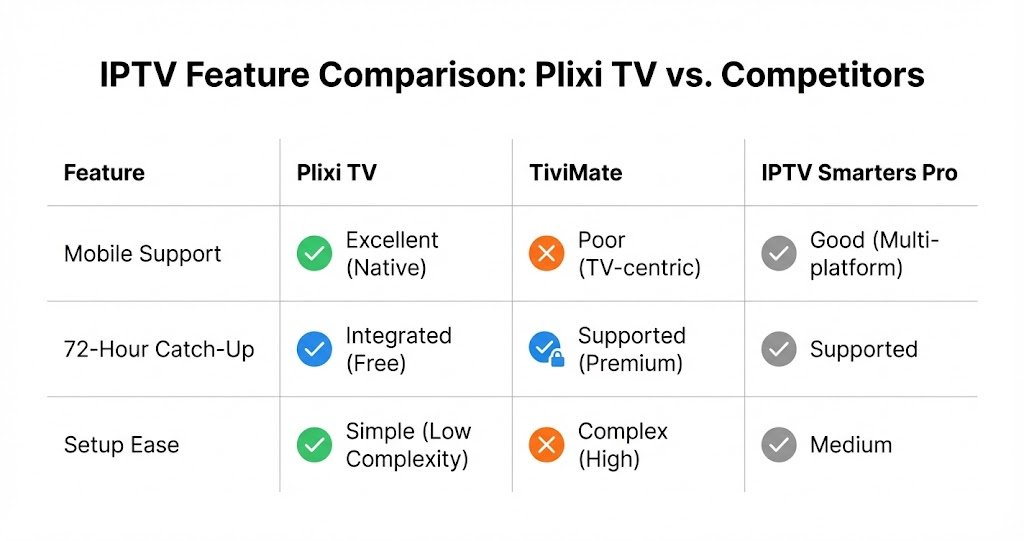
| Feature | Plixi TV | TiviMate | IPTV Smarters Pro | Plex |
| Primary Platform | Android Mobile & TV | Android TV | Multi-Platform | All Platforms |
| Touchscreen | Native Support | Poor | Good | Native |
| Catch-Up | 72-Hour Integrated | Premium Feature | Supported | N/A (Live DVR only) |
| Setup | Low Complexity | High Complexity | Medium | Medium (Server required) |
Plixi TV vs. TiviMate
TiviMate is highly customizable and mimics a traditional satellite box interface. However, it is strictly optimized for remote controls and is difficult to use on touchscreens. Plixi TV is a mobile-first application that scales up to TV screens, making it the better choice for smartphones and tablets.
Plixi TV vs. IPTV Smarters Pro
IPTV Smarters Pro is versatile but is often described as having a dated interface. Plixi TV aims for a more contemporary layout and offers a tighter integration of its catch-up feature, potentially leading to a smoother experience.
5. How to Install Plixi TV on Your Android Devices
Because the Plixi TV app aggregates content from various sources, it is often not hosted on the Google Play Store and must be “sideloaded.”
Installing on Amazon Firestick
- Enable Developer Options: Go to Settings > My Fire TV > About. Highlight the device name and click the Select button 7 times.
- Authorize Sources: In Developer Options, turn on Apps from Unknown Sources.
- Use Downloader: Install the Downloader app by AFTVnews from the Amazon store.
- Enter Search or Link: In Downloader, use a reputable repository link or a verified short code to reach the plixi tv download page.
- Finish: Click Install, then select Delete to remove the APK file and save storage space.
Android Mobile and Tablet Setup
Open a browser and search for the plixi tv apk on a reputable host. Once downloaded, open the file and toggle “Allow from this source” in your security settings to complete the installation.

6. Unlocking Premium Content: How to Buy and Add Your Credentials
While the Plixi TV application provides the interface, it does not come with pre-loaded content. To access the global channel lists, premium sports, and the 72-hour catch-up window, you must first obtain a valid subscription. This is a crucial step that transforms the app into a functional media powerhouse.
Why You Need a Premium Subscription
The “grey market” nature of high-quality IPTV means that servers require significant maintenance. By purchasing a dedicated subscription, you ensure that you are connected to high-speed, stable servers that don’t cut out during peak events like live football matches or breaking news.
- Instant Activation: Once you complete your purchase, you will receive a unique username and password or an activation code.
- Zero Buffering: Premium credentials grant you access to high-bandwidth lanes, essential for 1080p and 4K streaming.
- EPG & VOD Access: Subscribing unlocks the full Electronic Program Guide and thousands of movies on demand.
How to Add Your Credentials
Once you have purchased your subscription and received your details via email:
- Open the Plixi TV app on your device.
- On the login screen, enter the Username and Password provided.
- Click Login or Activate.
- Wait for the app to download the channel list and EPG data. You are now ready to stream!
7. Troubleshooting and Optimizing Your Stream
Fixing Buffering and Black Screens
- Time Synchronization: Black screens often occur if your device time differs from the server’s timestamped token. Manually set the correct date, time, and Time Zone in your settings.
- ISP Throttling: ISPs often throttle high-bandwidth streaming traffic. Using a VPN with OpenVPN or WireGuard protocols can prevent this via encryption.
- Protocol Issues: If a channel loops or freezes, switch the Stream Format from MPEG-TS to HLS in the settings. HLS handles packet loss more gracefully.
Common Error Codes
- Error 404 (Not Found): This usually means a link has changed or the EPG is stale. Clear the app cache in Android settings to force a refresh.
- Error 401 (Unauthorized): Your subscription may have expired, or you have reached the device limit. Verify your login credentials.
- Error 403 (Forbidden): This often indicates geo-blocking or an IP ban. Toggle your VPN on or change the server location to resolve it.
Conclusion
Plixi TV offers a robust solution for the modern “cord-cutter” by effectively merging live broadcasts with the convenience of on-demand viewing. While it operates in a “grey market” and requires manual installation, its technical merits—particularly the 72-hour catch-up feature—set it apart in a crowded market. For users who prioritize a streamlined mobile-first interface and global content access, it represents a powerful convergence of streaming technology.